Steps
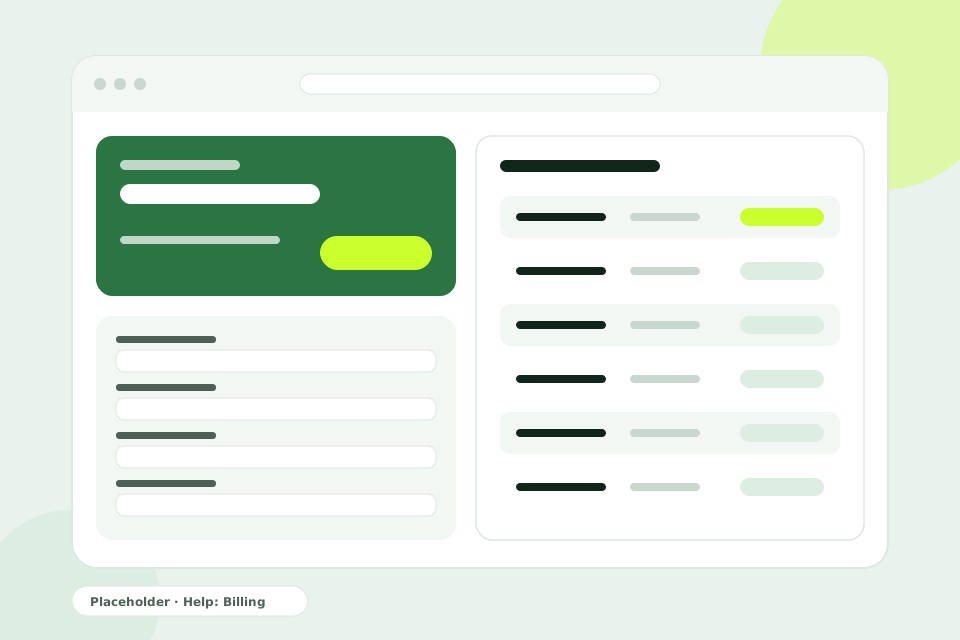
- Open Billing. In the sidebar, select Billing. Only Owners and Admins can see it.
- Check your plan. Under Current plan, see your plan and the date it is paid through. Your plan is set up by our team after your demo.
- Complete your billing profile. Under Billing profile, enter your Legal name, Billing email, address and Tax ID, then select Save billing profile. These details appear on future invoices.
- Pay an invoice. When an invoice is due, select Pay invoice, review the amount and select Continue to payment. Fibisoft confirms the payment with the payment provider before updating your subscription.
- Download invoices. Under Invoice history, open an invoice with View invoice and select Download PDF.
 {width="960" height="640" loading="lazy"}
Tips
- Invoices are issued every month, in XAF (FCFA).
- In Cameroon, you pay by mobile money through pawaPay. We’ll confirm the payment options that suit you during your demo.
- To change plan, contact us. A plan change takes effect once it is paid or at your next renewal.
- We email you before each renewal and if a payment fails, so keep the Billing email up to date.